. SOPFlow publishes this comparison. It combines current official Scribe sources with SOPFlow’s released implementation. The pilot below is an evaluation worksheet, not a completed hands-on benchmark or a customer result.
Which fits: a Scribe guide or a connected SOP workflow?
Choose around the work your team needs to finish. Scribe is worth evaluating when your immediate need is fast visual documentation across browser and native desktop applications. SOPFlow is worth evaluating when browser steps need to become an owned procedure that people review, learn and run in one workspace. Test those outcomes with the same task.
What Scribe does well
Scribe’s current plans cover browser capture, with native desktop capture on eligible paid tiers. Its pricing matrix also lists guide verification, history, contextual guide access and governance. Its official support documentation describes voice transcription on Pro and Enterprise.
Where SOPFlow connects the work
SOPFlow Recorder’s released capture is browser-based. Review and organize the draft, import selected steps into an SOP phase, assign an owning team, review and publish it. Training assignments and procedure runs use that content for different jobs: learning the instructions and recording a particular execution.
Compare the same work, not just the feature list
Use a customer handoff: confirm the details, assign an owner and record the next action. Evaluate capture and what your team needs afterward.
| Task | What to evaluate in the alternative | What to verify in SOPFlow |
|---|---|---|
| Capture the task | Scribe creates screenshot guides; voice transcription and desktop capture are available on eligible plans. | Record the browser workflow and review events and instructions. The released recorder does not capture native applications. |
| Review instructions | Check editing and the history and verification options included in your plan. | Link steps to source events; merge, split, reorder and add checklists and responsible roles. |
| Use the guide at work | Test sharing and finding the current guide. Evaluate Scribe Optimize analysis separately. | Import the draft, manage SOP review, then try a training assignment and a run with completion evidence. |
Product sources
See the complete handoff and download the SOPSee our internal test and original output
Compare workspace cost with paid-seat cost
The billing unit matters as much as the headline rate. The Scribe figures below come from the visible pricing cards with the monthly and yearly toggle checked on October 15, 2026. Pro Team starts at five seats. SOPFlow prices and capacities come from the same approved catalog used by its pricing page.
Scroll horizontally to compare the prices and limits. You can also focus a table and use the arrow keys.
| Plan and billing unit | Monthly billing, USD | Annual commitment, USD | Capacity used in this comparison |
|---|---|---|---|
| Scribe Basic | Free | Free | Browser guide creation; check Basic limits |
| Scribe Pro Personal | 35 · per seat per month | 300 · per seat per year | Starts at 1 paid seat |
| Scribe Pro Team | 145 · for 5 paid seats per month | 1,380 · for 5 paid seats per year | Starts at 5 paid seats |
| Scribe Enterprise | Custom quote | Custom quote | Confirm package and seats with Scribe |
| Plan and billing unit | Monthly billing, USD | Annual commitment, USD | Capacity used in this comparison |
|---|---|---|---|
| SOPFlow Free | 0 USD | 0 USD | 3 workspace users; 5 SOPs; 100 MB storage; 50,000 shared AI tokens/week |
| SOPFlow Starter | 39 USD | 390 USD | 10 workspace users; 25 SOPs; 2 GB storage; 250,000 shared AI tokens/week |
| SOPFlow Pro | 149 USD | 1,490 USD | 50 workspace users; 250 SOPs; 20 GB storage; 1,000,000 shared AI tokens/week |
For example, five Scribe Pro Team seats at the displayed rate total 145 USD on monthly billing, or 1,380 USD for a year at the displayed yearly rate. A yearly per-month equivalent is not a monthly invoice. Confirm final checkout, taxes and any negotiated terms. These prices describe different packages and do not establish feature parity or a cheapest-tool claim.
Count everyone who needs authoring, review or operational access before choosing a plan. Scribe’s pricing FAQ says a Pro upgrade applies to the team and Basic and Pro cannot be mixed within that team; check the appropriate team structure with Scribe. In SOPFlow, user, SOP, storage and shared weekly AI limits still matter even when the workspace subscription covers the people you need.
Every SOPFlow plan includes AI tools and Recorder processing within its shared weekly allowance. Tokens reset weekly and do not roll over or trigger automatic overage charges. Compare the current limits with the amount of capture and refinement you expect, rather than treating either a free plan or a paid subscription as unlimited processing.
Run the same customer-handoff task in both tools
Use fictional account AC-104. Implementation must hand the account to a Customer Success coordinator, who accepts the next action. Prepare an ordinary record and a second one with a missing contact. Decide the acceptance checks before starting, and write the selected plan and billing term on your worksheet.
- Capture: record the browser task, then inspect the generated wording and screenshots. Count missing or incorrect steps and note the edits needed. If native desktop capture is essential, test that separately on an eligible Scribe plan; it is outside SOPFlow Recorder’s released scope.
- Add context: explain why the contact must be verified and what happens when it is missing. If you use voice, compare the resulting text and corrections on your actual language/browser combination. Do not assume an on-device speech feature works on every computer.
- Prepare the procedure: name the maintaining owner, the person doing the task and the receiving role. In SOPFlow, inspect the import preview and destination phase before adding or replacing content.
- Review a change: rename the contact field in a draft. Have the intended reviewer identify the change and confirm the version a reader should use. In Scribe, demonstrate the relevant history and verification functions on the plan you are evaluating.
- Test learning: ask a new teammate to find the instructions and explain the missing-contact decision. In SOPFlow, try the relevant training assignment and review its result. A view count or a quiz pass alone does not establish practical readiness.
- Execute the task: have the receiver accept the next action and record the result. In SOPFlow, start a run and inspect the required responses or evidence. Ask each vendor to demonstrate any completion records your process requires.
- Repeat the exception: remove the contact and check that the participant stops and routes the missing information to the owner. Revise the instructions if the person has to guess.
- Test the next revision: publish the accepted change and verify what later readers see. Preserve the reference used for earlier learning and work records instead of assuming every old result now proves knowledge of the new instructions.
Record the outcome for each check as passed, needs work or not tested, with a link to the evidence and any manual follow-up. Compare edit counts and observed task results. Record elapsed time only if both trials use the same task, operator experience and timing rules; do not turn this worksheet into an invented time-savings claim.
Download the side-by-side evaluation worksheet (CSV)
See the workflow in SOPFlow
A handoff with checks and a receiving owner.
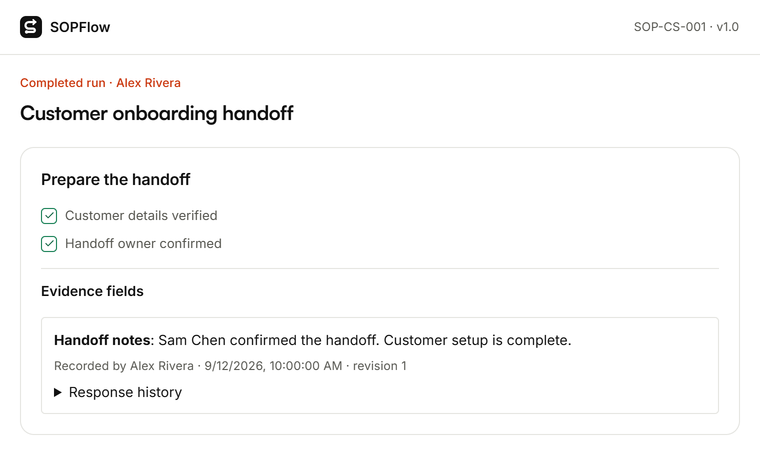
Follow the required checks, then keep the receiving owner and next action in the run evidence. Watch the walkthrough to see how captured browser steps become reviewed instructions.

Watch the customer handoff walkthrough · 1:05
SOPFlow, from capture to handoff
1:05 · Narration, music and captions
Prepared example data illustrates capture, editing, import, approval and execution in real SOPFlow screens. AI narration, original background music and synchronized captions explain each stage.
Read the full walkthrough transcript
Check the captured draft
Here's a customer onboarding workflow in SOP Flow. Browser actions and screenshots become a draft. Start by checking the captured instructions against the evidence.
Make every instruction clear
Open the review workbench. Select the handoff step, clarify what happens next, and name the responsible role. Use review suggestions to spot missing context.
Preview and import
Next, choose the destination SOP and phase. Preview the selected steps, and choose whether to append them or replace existing content before importing.
Review before publishing
Import creates a draft, not an approved procedure. Follow your team's review process before publishing. This prepared example shows the reviewed procedure.
Follow the SOP and keep evidence
When the procedure is ready, the next person can follow it, complete required checks, and record handoff evidence. Capture once, then review and put it to work.
Actual SOPFlow components with prepared fictional records. These examples show the interface, not a customer result.
Move one procedure before moving a library
Scribe lists PDF, HTML and Markdown exports on eligible paid plans. Keep the original export and verify its images and links. SOPFlow’s document import accepts pasted procedure text; it does not automatically migrate Scribe permissions, attachments, verification history or analytics. Reattach needed images, set access, review the draft and retain the source reference. A recapture may be more useful when the old guide is already out of date.
Check capture boundaries and sensitive information
Use fictional data during the pilot. Inspect screenshots, URLs, captured text and voice notes before sharing. SOPFlow masking helps reduce sensitive text but does not guarantee every private detail is removed from images or page content. Scribe’s redaction capabilities vary by plan; evaluate the required controls rather than inferring compliance from a feature name.
Questions before choosing a Scribe alternative
- Is SOPFlow a replacement for Scribe’s desktop recorder?
- Its released Recorder captures supported browser work. If the task must cross native desktop applications, include Scribe’s eligible desktop plan or another suitable method in your evaluation.
- Does Scribe support voice and verification?
- Yes. Its official pages describe voice transcription and plan-dependent guide verification/history. Check the exact tier and retention period rather than assuming those functions are absent.
- Can I start with a free plan?
- Both vendors have a free offering with different limits. SOPFlow’s ongoing Free plan has workspace capacity and a shared weekly AI allowance shown above. Try one complete procedure within those limits before deciding what to purchase.
- Will importing a guide make it an approved SOP?
- No. Review the instructions, responsibilities, exceptions and images, configure access and follow the publication workflow. Imported text alone does not establish that the procedure has been approved or followed.
Sources and next steps
- Scribe pricing, billing FAQ and feature matrix
- Scribe voice transcription
- Scribe Optimize: separate workflow analysis